Device Hacking for Unreal Engine
Product overview
Unreal project featuring a Device Hacking game/minigame with a minesweeper approach.
Link to the offcial Unreal Engine Marketplace Page for this Project

Gameplay
A Hacking Device puzzle widget that can be launched from an actor with a collision box. the actor can be placed for example on a computer or next to a door and make the user "hack" the device to unlock the rewards or gain access.
There's 8 types of tiles:
1. Neutral (gray) (no effect or not yet open)
2. Access (blue) (opens adjacent tiles and adds movement points)
3. Firewall (orange) (hides adjacent tiles, turning them either closed or orange so you can't see whether they're open or not, and subtracts movement points.
4. Virus (red) (clicking on it removes movement points or causes a game over)
5. Decoy (pink) (randomly changes to the color of a core, reduces movement points)
6. Core (yellow) (clicking on it hacks a core; hacking all the cores on the panel wins the game)
7. Start (green) (the starting tile, open at the beginning, opens the surrounding tiles so you can see where to start)
8. Empty (black) (a tile that doesn't interact, leaving gaps to create shapes on the panels)
The idea is to break through the pannel clicking on the right cells to finally open the cores.
Content
-10 widgets, including Hacking net and Level Editor
-2 Actors which trigger the Game and the Editor
-1 Save Game File
-1 Default map to test the system

Applications
-Device Hacking can be used as a standalone puzzle game or it can be used as a Minigame to open doors or unlock access to content for example.
Starting the project
Open The “Epic Games Launcher”, go to the “Unreal Engine” section, and then click on “Library”.
Scrolling down your library you will find your “Vault” at the bottom. There is where your purchased content will be available.
Click here for more details about how to find your purchased content for Unreal Engine
Migrating Content to another Project
Make sure both projects are made with the same version when migrating content between them.
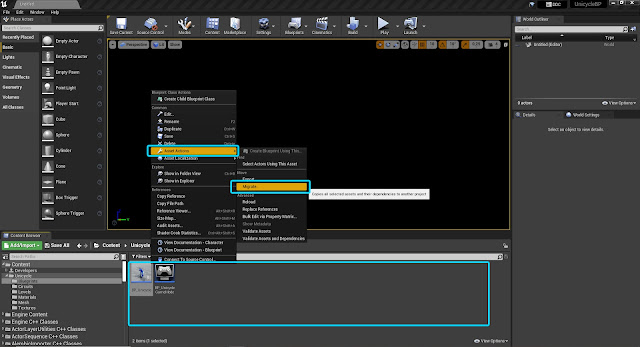
Right click on the assets you want to migrate, and it will appear a Menu.
Click on “Asset Actions” and then on “Migrate” and follow the instructions.
Click here to learn more about migrating content from one project to another.
Make sure to copy the needed Blueprint content and variables also inside your character BP if you don’t want to use the one included.
Example Levels
 |
 |
 |
 |
 |
 |
 |
 |
 |
 |
Thank you for downloading, I hope you like the product and that it gives you good results.
I would be glad to know what projects you develop involving this content.
©apcgraficos


Comments
Post a Comment